

Published: 20.03.2026
See moreWi-Fi Connection Guide for Kosmen Industrial Dehumidifiers
 Kosmen Tây Nguyên
 Published:
24/03/2026, 14:00
- Updated at 23/06/2026, 09:11
Published:
24/03/2026, 14:00
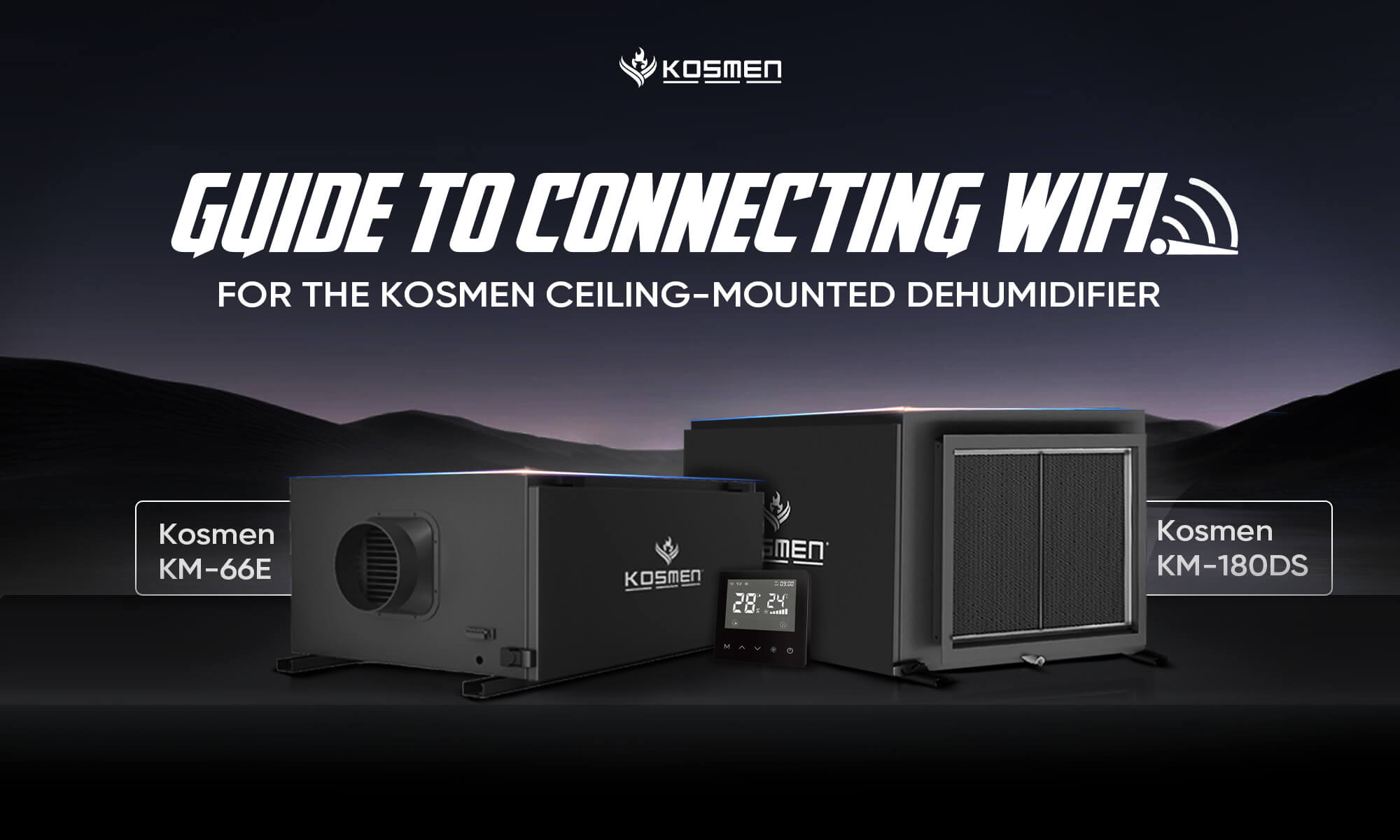
- Updated at 23/06/2026, 09:11Kosmen products support Wi-Fi connectivity, allowing for easy remote control via smartphone.
Kosmen products support Wi-Fi connectivity for easy remote control via your smartphone. To set up, you need to connect the device to a Wi-Fi network through the app. Follow these steps:
Detailed Wi-Fi Connection Instructions
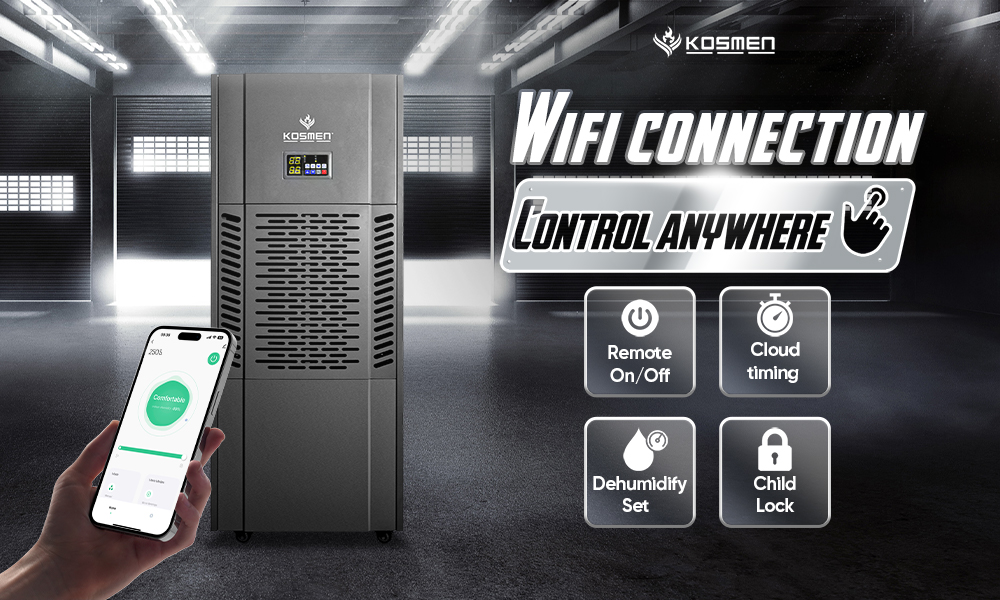
Wi-Fi connectivity for Kosmen industrial dehumidifiers
Step 1: Activate Wi-Fi Mode on the Device and Download the App
- Plug in the power and press the On/Off button to start the device.
- Press and hold the Wi-Fi icon on the control panel for about 5 seconds.
- When the device beeps and the Wi-Fi indicator starts blinking, the device is ready to connect.
Step 2: Install the App on Your Phone
- Open the App Store (iOS) or Google Play Store (Android) on your smartphone or tablet.
Search for the “Tuya Smart” or “Smart Life” app and download it. - After installation, open the app and agree to the terms and privacy policy.
- If you do not have an account, select “Register.” If you already have an account, simply log in.
Step 3: Add the Device to the App
Connect to the device
- After enabling connection mode, tap the “+” icon in the app to search and scan for the device.
- When the app successfully detects the device, select “Add” to include it in the app.
- Enter the correct Wi-Fi password for the network you want to connect to.
- Wait a few moments while the app connects to the device.
- When the Wi-Fi indicator on the machine stops blinking, it means the device has successfully connected to the Wi-Fi network.
- Select “Finish”, then tap the device icon in the app to start controlling it.
Notes During Connection
To ensure a successful connection, please keep in mind the following:
- Keep the device, smartphone, and Wi-Fi router close to each other to avoid signal interruptions.
- Use only a 2.4GHz Wi-Fi network. The device does not support 5GHz.
- Ensure a stable network connection and enter the correct Wi-Fi password.
- Follow all steps as instructed in the app to set the device into connection-ready mode.
Step 4: Complete the Connection and Start Using
After a successful connection, the app will display the dehumidifier control interface along with humidity information and other functions.
- Press the power button to turn on the device.
- To access all features, go to “Mode” → tap the “+” icon to add functions to the main screen
Main Screen Features
Mode (3 Modes Available)
- Dry (Continuous Drying): The machine operates continuously at high capacity, combined with a heating system, to enhance dehumidification efficiency and quickly dry the environment. This mode is ideal for areas with prolonged high humidity, such as storage warehouses, production workshops, or drying spaces for goods. It is especially suitable during damp, rainy weather or when materials need to be dried quickly.
- Manual (Custom Humidity Setting): Allows the operator to set a desired humidity level according to the specific requirements of different storage areas or production lines. The machine will automatically start or stop based on the actual humidity compared to the preset value, ensuring precise humidity control, saving energy, and extending the equipment’s lifespan.
- CO (Continuous Dehumidification): In this mode, the machine runs continuously without stopping until the user exits the mode by pressing any button (except the “Set” button). It is suitable for environments with prolonged high humidity or high moisture levels, such as damp warehouses, production workshops, or during rainy seasons.
Dehumidify Set (Humidity Setting)
The dehumidifier allows users to set the desired humidity level to control environmental conditions in spaces such as factories, warehouses, and technical equipment rooms. Users can adjust the humidity level using the Add (+) and Subtract (−) buttons, with each press increasing or decreasing the set humidity by 1%. After 6 seconds of inactivity, the screen will revert to displaying the actual ambient humidity.
Adjustable Humidity Range
Users can set the humidity level between 10% and 90% using the +/− buttons, with each press changing the value by 1%. When the actual humidity drops below the set level, the machine will automatically stop to save energy. Conversely, when the humidity rises above the set level, the machine will automatically restart to maintain stable humidity in the space. This feature allows users to freely set the humidity level according to the specific needs of each area.
Child Lock (Lock Mode)
The lock feature secures the entire control panel, preventing accidental or improper operations during use. This function is especially useful in high-traffic environments, helping protect the equipment, maintain stable settings, and ensure safety when the dehumidifier is running continuously in areas such as warehouses, production workshops, and technical rooms.
Cloud Timing (Timer Function)
The timer function allows users to set specific times for the dehumidifier to automatically turn on or off according to a schedule. This feature helps save energy and provides flexibility in daily operation.
For example: You can set the dehumidifier to automatically turn on at 10:30 AM every Sunday, Monday, and Tuesday. Simply select the "ON" mode, then press the "OK" button to confirm.
Similarly, you can set a schedule for the unit to automatically turn off, for instance at 11:00 PM every Wednesday, Thursday, and Friday. This will be the "OFF" cycle, and on these days, the machine will shut down at the preset time.
Benefits of Wi-Fi Connection with Kosmen Industrial Dehumidifiers
Integrating Wi-Fi connectivity into Kosmen industrial dehumidifiers brings outstanding advantages, helping users enhance operational efficiency and optimize humidity control in industrial spaces, warehouses, production workshops, or other areas requiring strict humidity management.
Easy Remote Control
- With Wi-Fi connection, you can control the dehumidifier directly from your smartphone:
- Easily turn the unit on/off, set dehumidification modes, or schedule operation without needing to be near the machine.
- Simple and convenient operation, even when you are in another room or busy cooking or working.
- Effortlessly control your Kosmen dehumidifier remotely thanks to Wi-Fi connectivity.
Energy Saving
- Wi-Fi connectivity allows businesses to manage the operating schedule of the dehumidifier proactively, contributing to optimizing electricity costs during operation.
- With remote control via smartphone, managers can turn the machine on/off promptly when not in use, preventing unnecessary continuous operation.
- Easily set fixed operating schedules, for example, running the unit only at night or during peak humidity hours in warehouses.
- Configure the machine to stop automatically once the desired humidity level is reached, avoiding overcapacity operation—both saving energy and extending equipment lifespan.
- For large-scale dehumidification systems, this is an effective solution to reduce overall operating costs while still maintaining standard humidity levels throughout production or storage.
Monitoring and Controlling Workplace Humidity
- When connected to Wi-Fi, the Kosmen industrial dehumidifier allows precise and continuous monitoring and control of air humidity in factories, warehouses, or production rooms via the mobile app.
- The app displays real-time humidity levels, enabling managers to quickly grasp the environmental conditions.
- Automatic alerts are sent when humidity exceeds the allowable threshold, helping businesses respond promptly to protect goods, raw materials, and production equipment.
- Ensures that air conditions remain dry and stable, preventing risks such as mold, metal corrosion, electronic component damage, or product quality deterioration.
- Maintaining optimal humidity in specialized areas (such as clean rooms, storage facilities, food processing lines, or medical equipment rooms) helps meet production standards, enhancing efficiency and business reputation.
Convenient Safety Lock Feature
- The dehumidifier is not only smart but also equipped with a Safety Lock feature to prevent unintended operations in specialized working environments.
- This feature is especially useful in production areas, warehouses, or places with high traffic, avoiding accidental changes to machine settings by staff or unauthorized persons.
- Although there is no dedicated button for the lock function on the control panel, it can be activated remotely via Wi-Fi through the app.
- Once the safety lock is enabled, all buttons on the control panel are disabled, ensuring stable operation settings and preventing interruptions to ongoing dehumidification cycles.
- This not only ensures safe operation but also helps maintain the device’s longevity and stable performance over time.
With the above information, we hope you now clearly understand how to connect to Wi-Fi and take advantage of the smart features of the Kosmen dehumidifier. If you need further instructions or technical support, please don’t hesitate to contact the Kosmen customer service team. We are always ready to assist you!
Contact Support:
- Head Office: No. 27B, Street 12, Hiep Binh Ward, Ho Chi Minh City
- Hanoi Office: No. NV4.7, Cau Buou New Urban Area, Thanh Liet Ward, Hanoi City
- Da Nang Office: No. 41, Vo An Ninh Street, Hoa Xuan Ward, Da Nang City
- Da Lat Office: No. 38/7, Ba Thang Hai Alley, Xuan Huong Ward, Da Lat, Lam Dong Province
- Hotline: 0766 899 799 (North) - 0965 210 874 (South) - 0975 359 877 (Central Highlands) - 0935 696 695 (Central)
- Website: https://kosmen.com.vn/en
Share the article


Related news